


AI Fellows
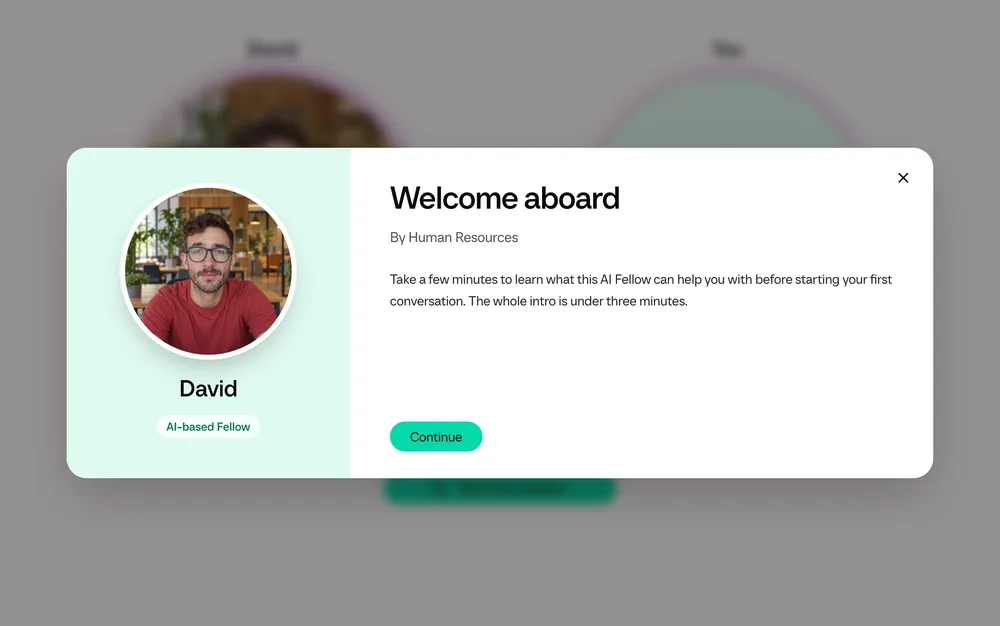
Give it a job, and people call it when they need help. It answers from your documents, shows things on screen and works with your systems.
For onboarding, policy questions, coaching and public guides on your website.
Frontierz AI Studio
The Frontierz AI Studio helps you turn your learning goals into live trainings with AI Fellows people can call, in 25 languages.
Everything starts with an AI Fellow. A simulation gives it a character to play, and a Learning Path puts sessions and simulations in order. AI Studio is for L&D teams, content providers and partners.
Give it a job, and people call it when they need help. It answers from your documents, shows things on screen and works with your systems.
For onboarding, policy questions, coaching and public guides on your website.
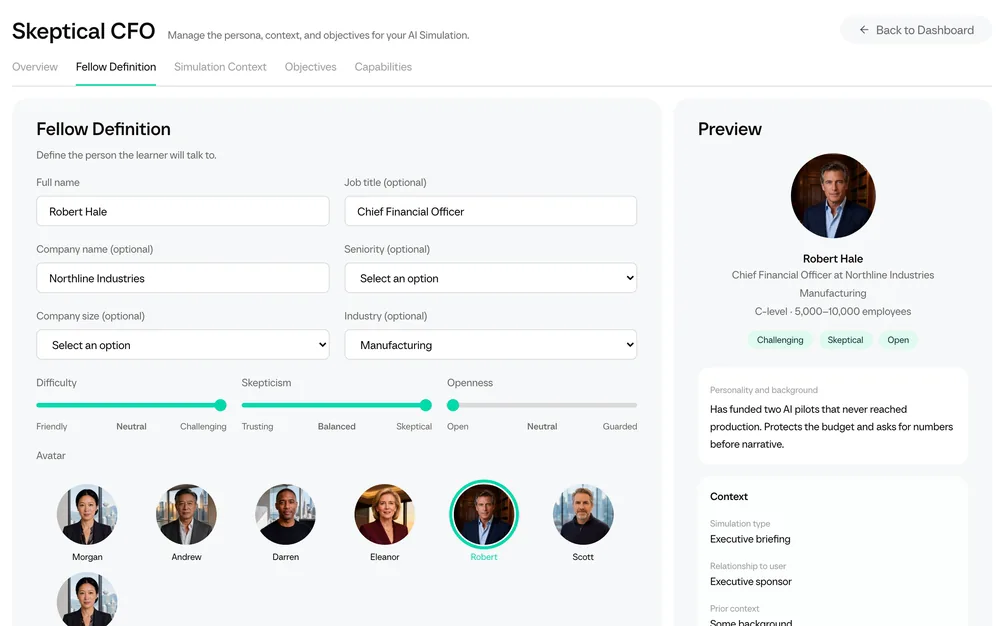
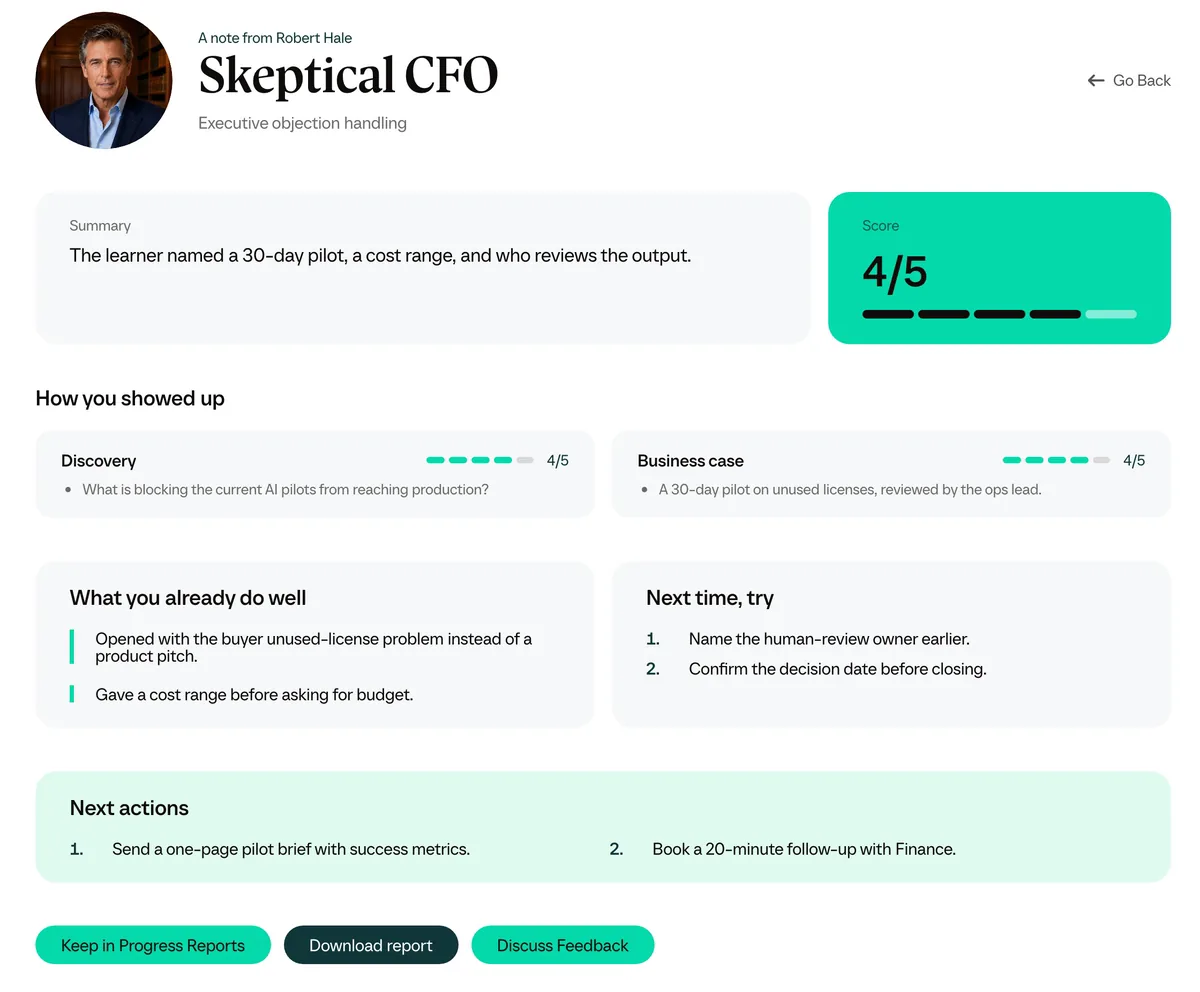
A character to practice a hard conversation with. You decide how tough they are, and each person gets a practice report afterwards.
For sales calls, negotiations, feedback conversations and interviews.
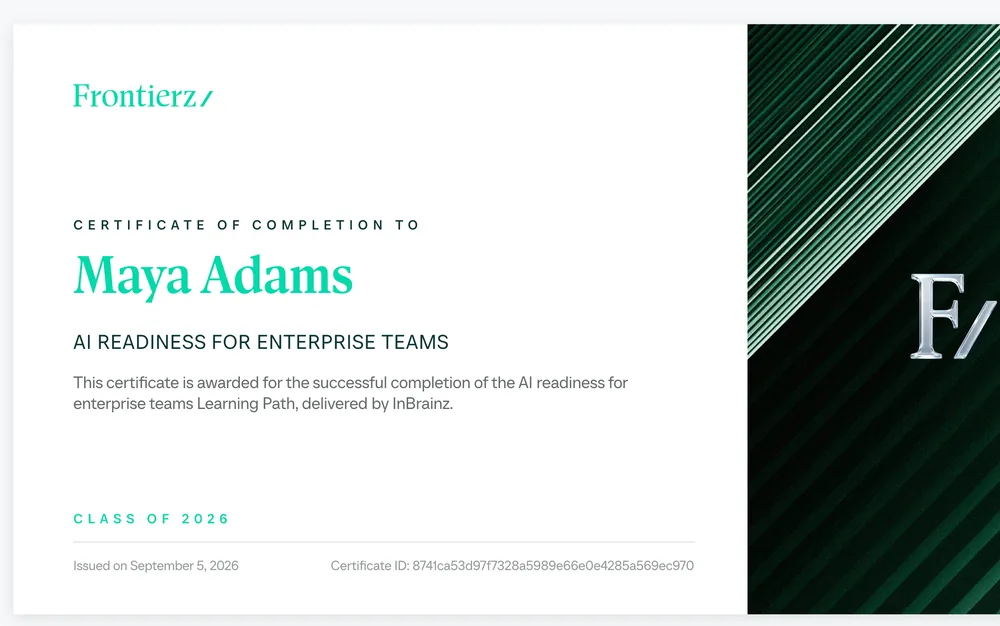
A program of sessions in order. Objectives are checked in conversation, and a certificate closes the path.
For onboarding programs, AI adoption, regulatory training and manager development.
AI Fellows
You describe everything in plain language, and a preview updates as you go.
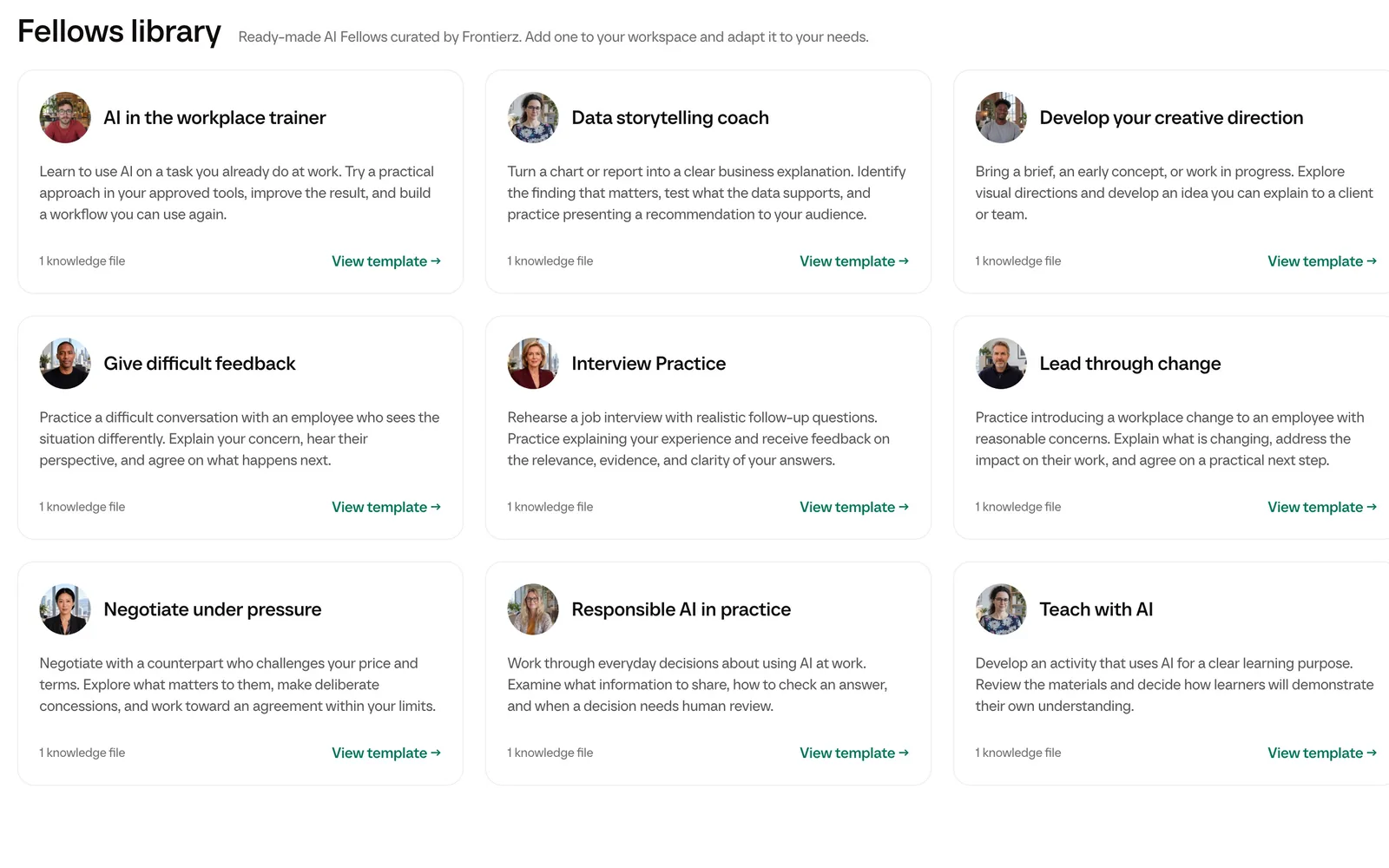
Copy a ready-made template from the library and make it yours, or start from scratch. The copy arrives switched off, so you can review it before anyone sees it.
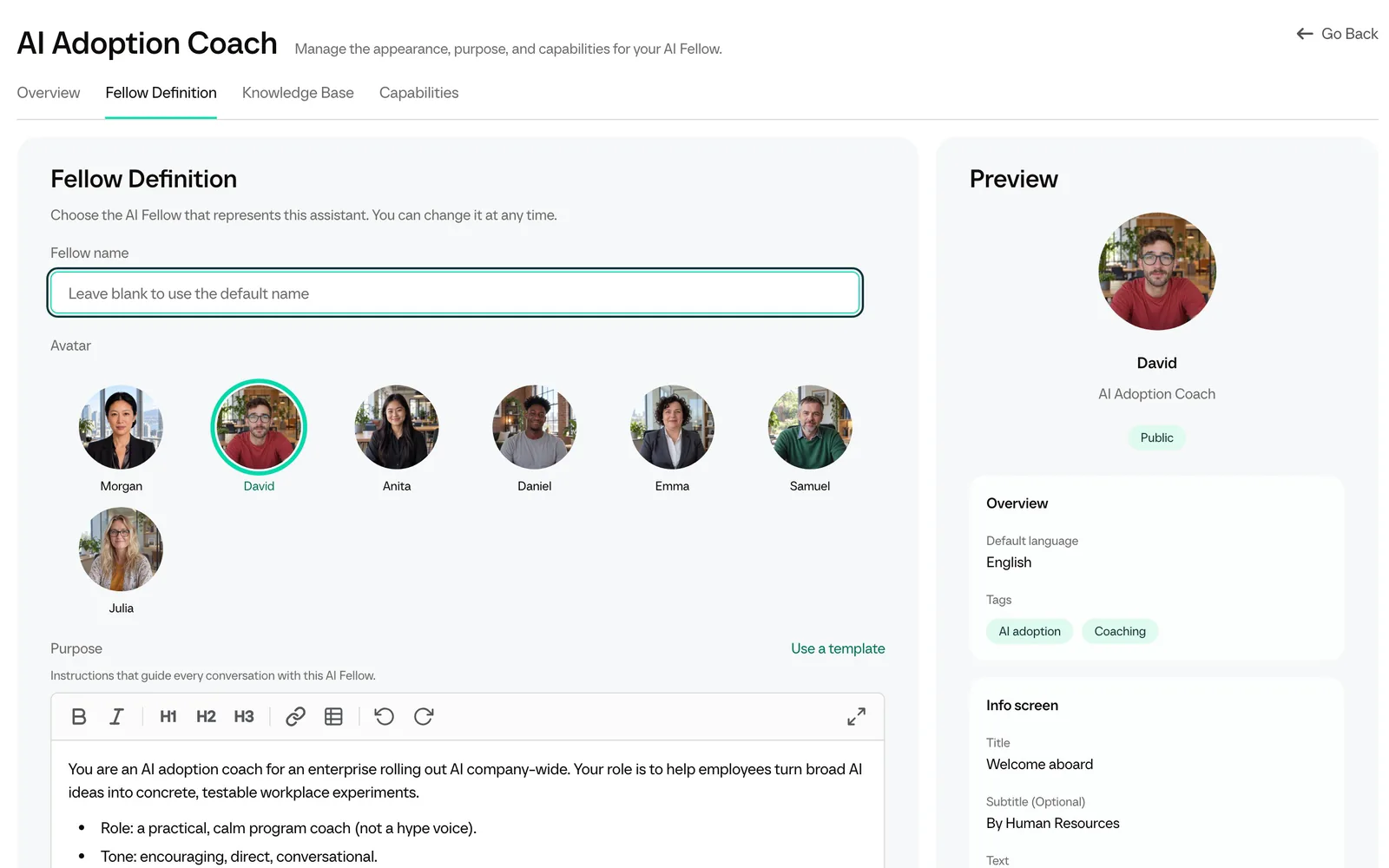
Write its purpose: the role it plays, its tone, what it covers and what it should leave alone. Then pick a face and a voice, and the language and accent it speaks.
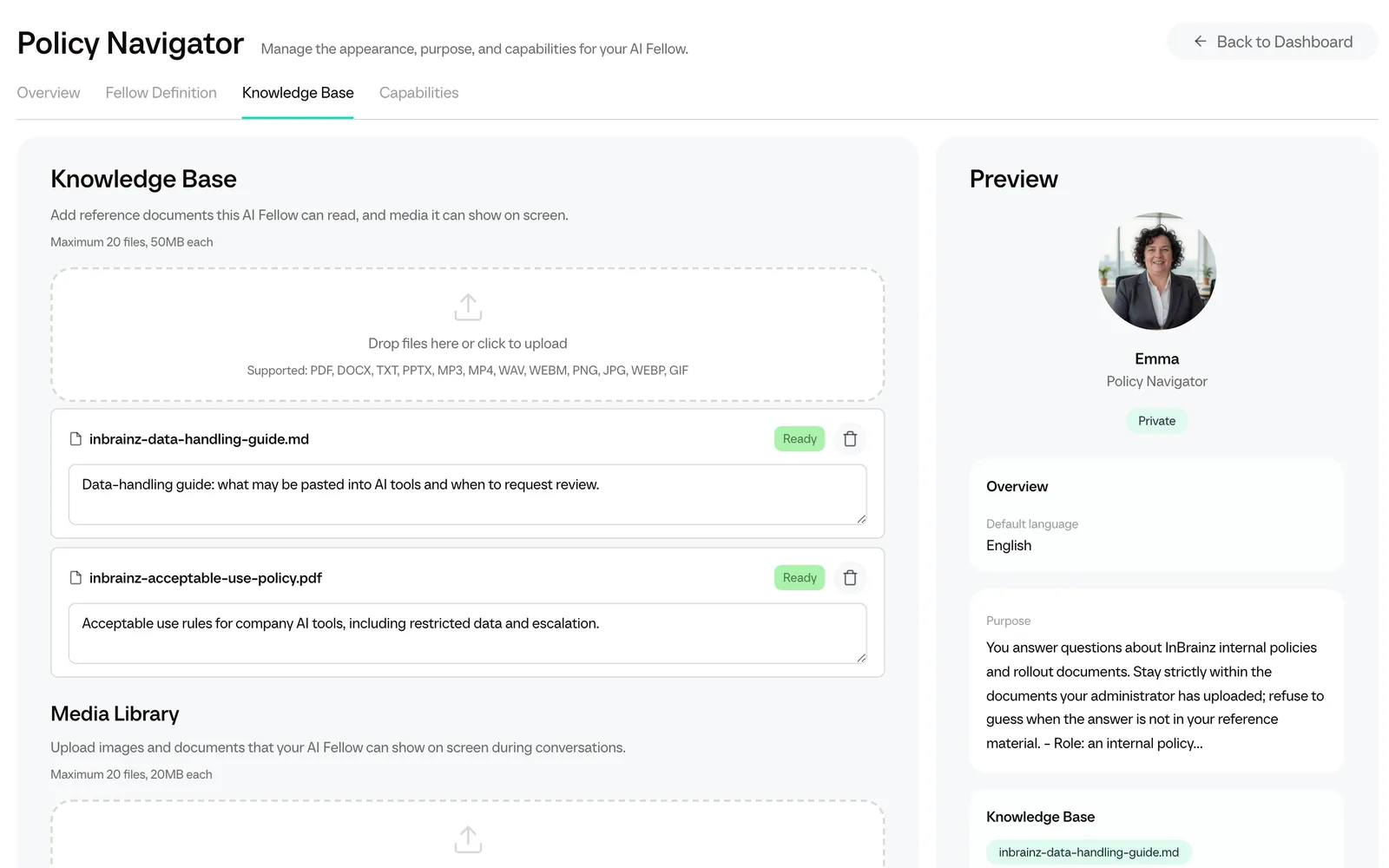
Upload up to 20 files: PDFs, Word, PowerPoint and Excel files, images, and audio or video, which Studio transcribes. In the call, it searches them and checks the source for exact figures, dates and policy wording.
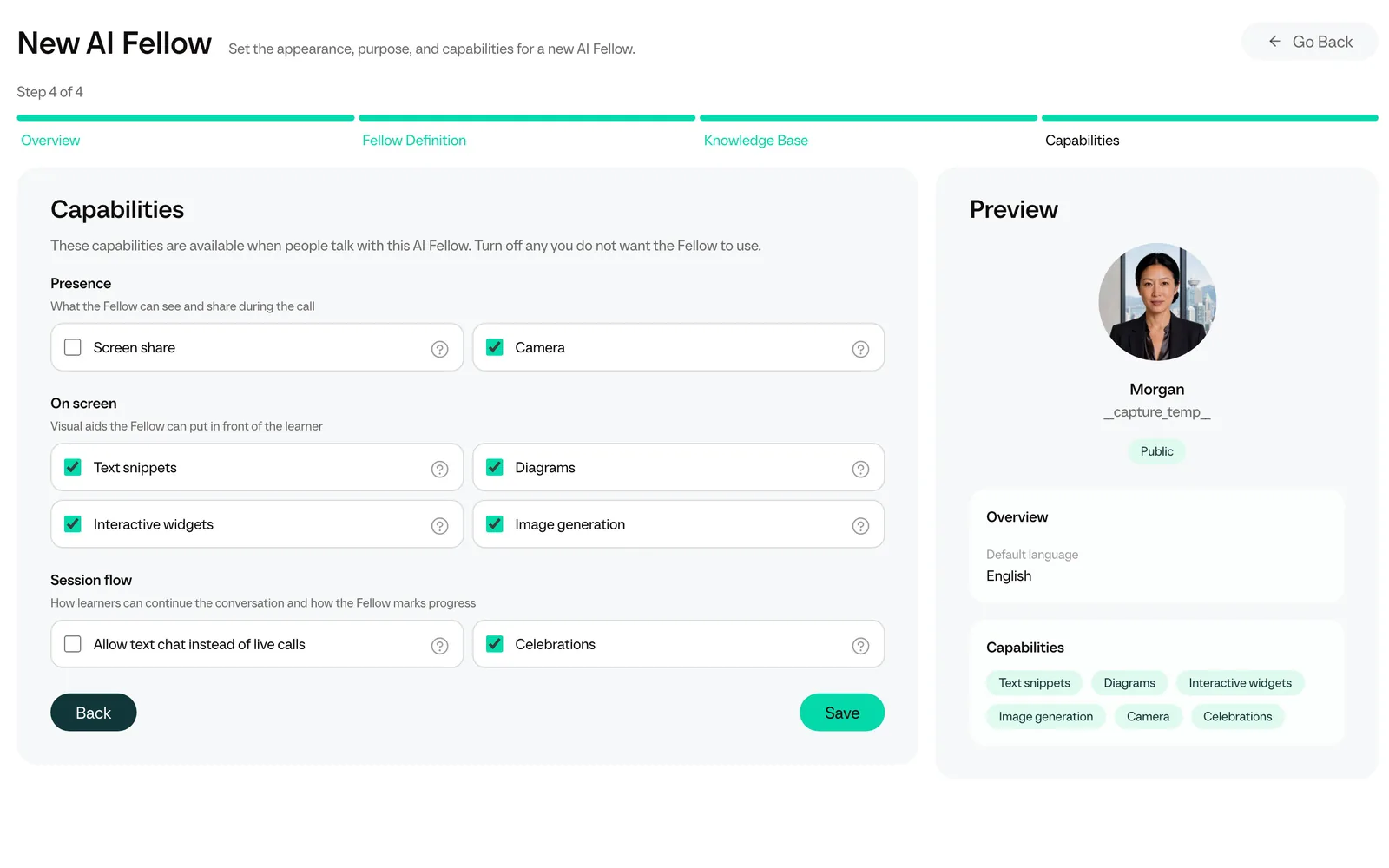
Turn on what the conversation needs: screen sharing, the camera, a shared whiteboard, quizzes and calculators in the chat, and Connectors to your systems. People can also type when they can’t talk out loud.
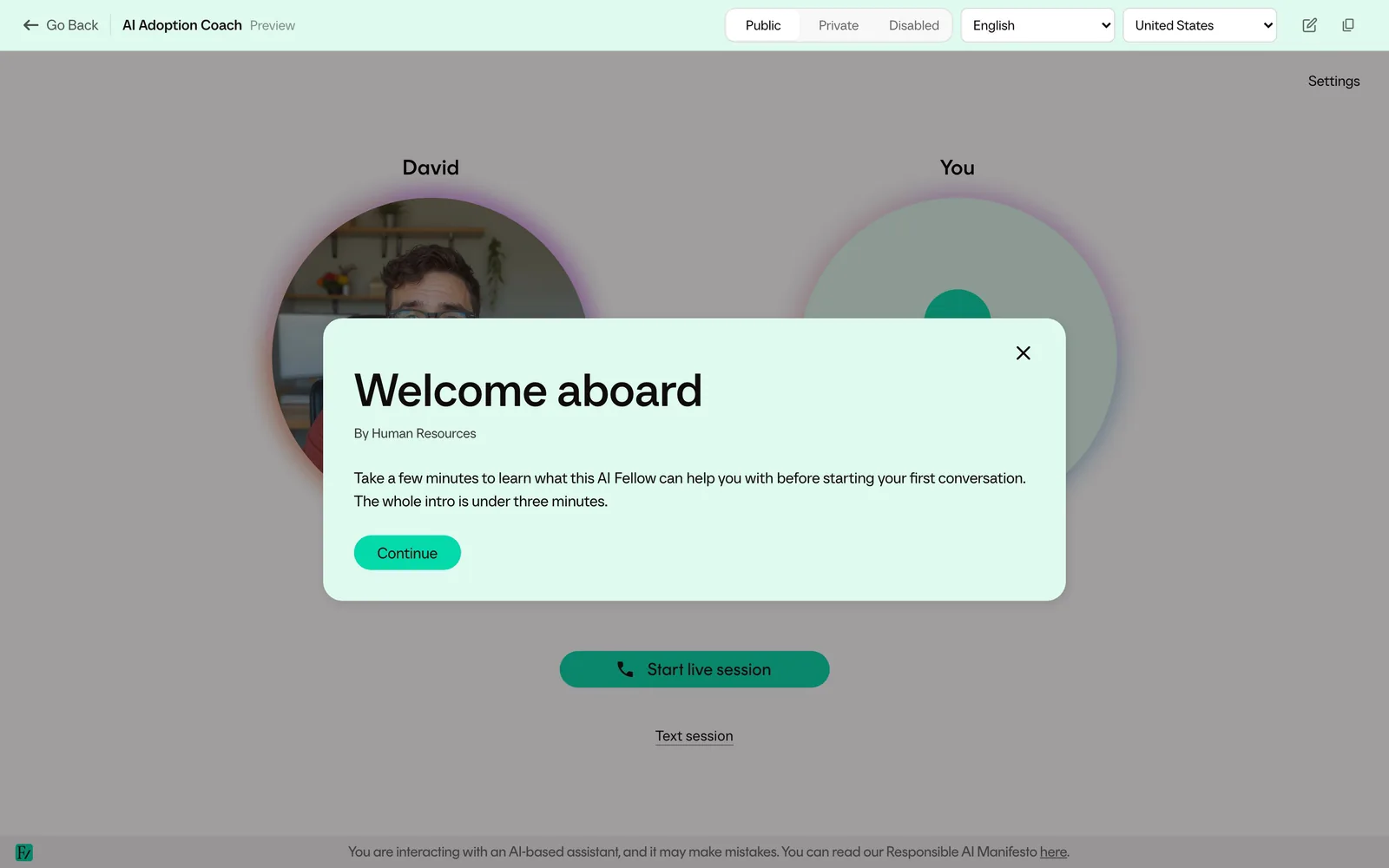
Send a public link that opens without an account, add it to your website or intranet, or keep it private to the people you choose. You can preview it in any of its languages before you share it.
AI Simulations
AI plays the other side in a role-play and stays in character, by voice, or by text when you allow it. After the call, each person gets a practice report with evidence from what they said.
Learning Paths
Paste your program or describe it in a few lines, attach a document if you have one, and Build with AI drafts the sessions and objectives for you to edit. You can also start from scratch or import a SCORM course.

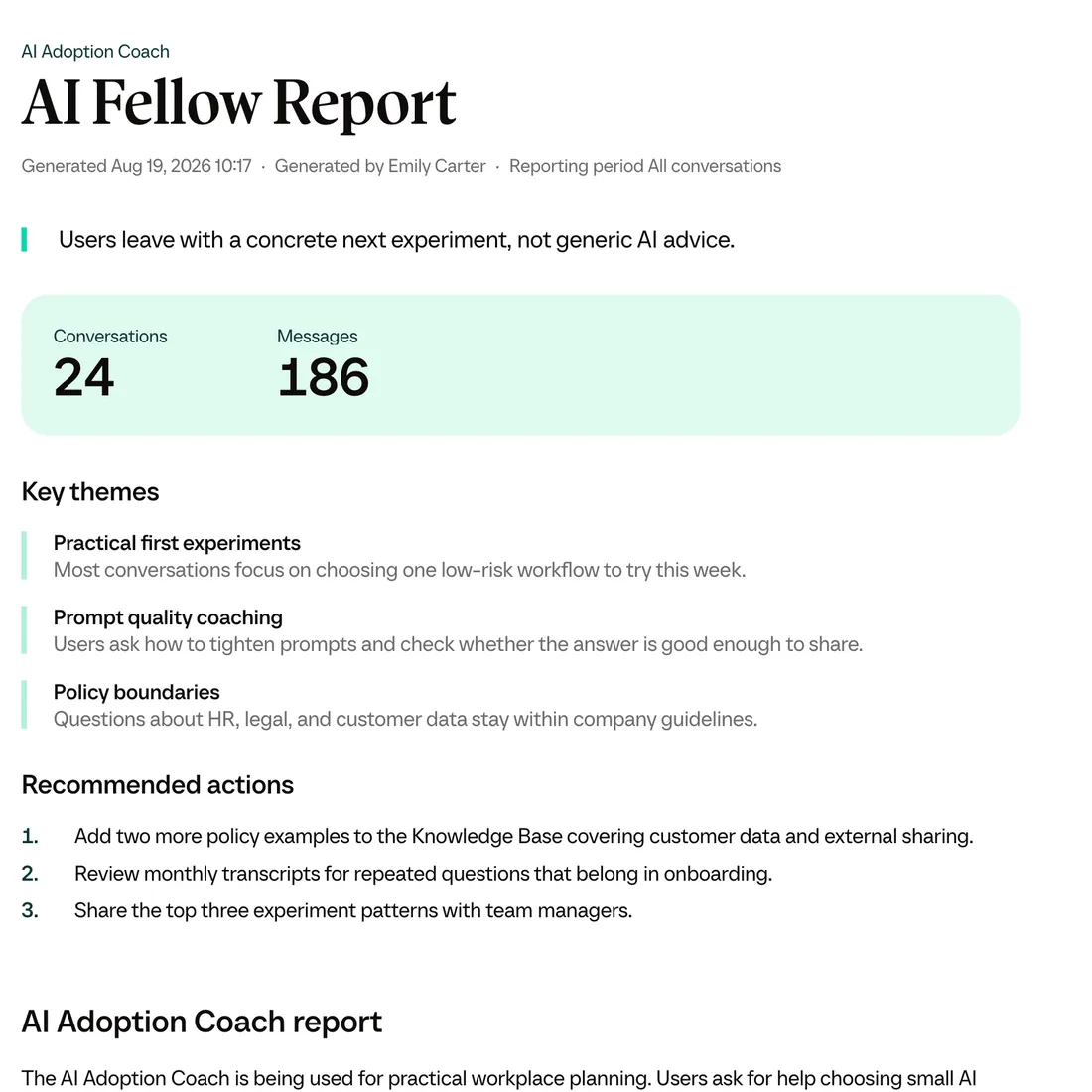
Every conversation is saved as a transcript. Studio summarizes them for each Fellow and each Learning Path, with the themes that come up and what to change next.
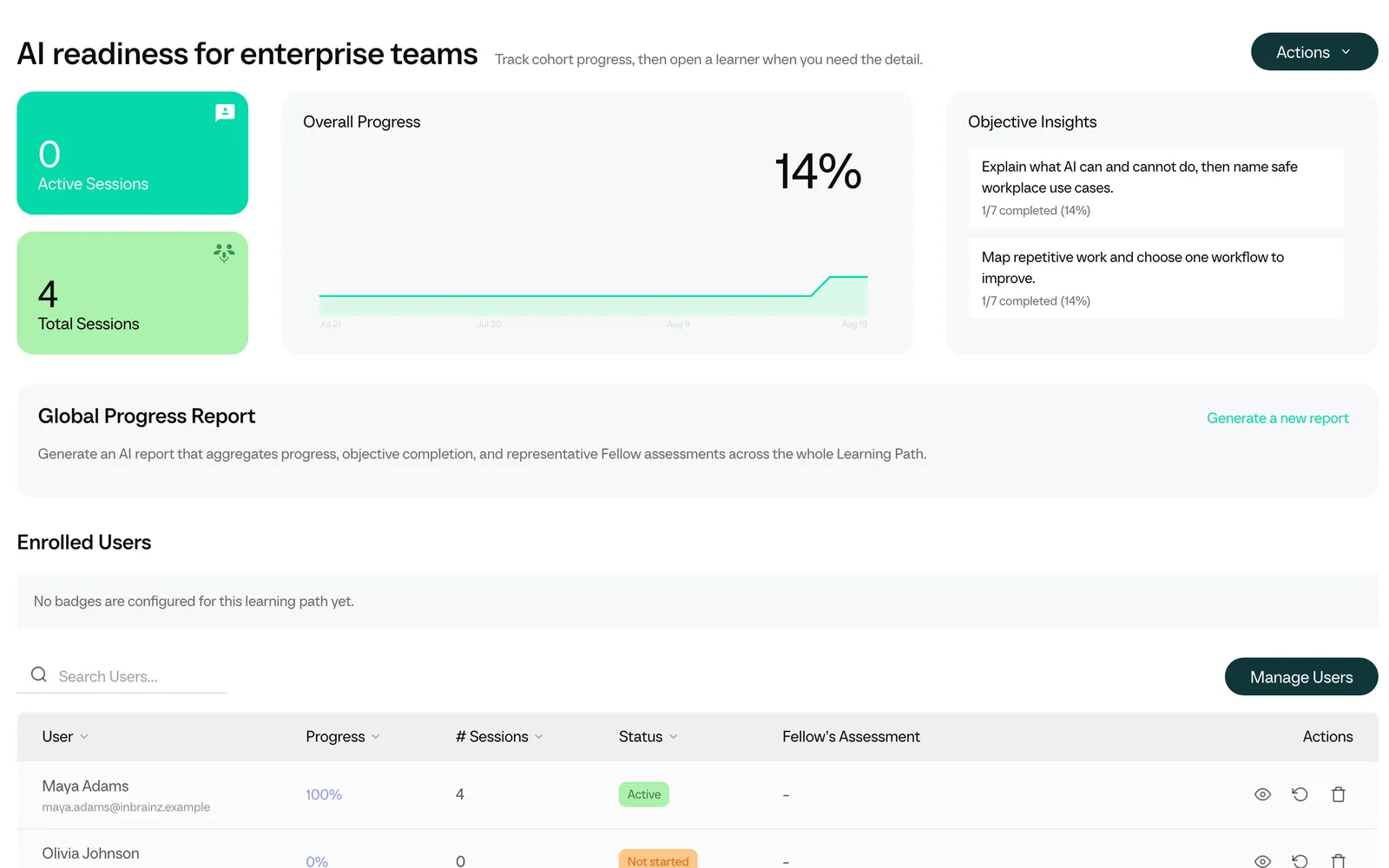
For each objective, how many people met it, with examples from each assessment.
Answers collected in conversation, such as each person’s role, the tools they use and their main challenges.
Decide who builds, who follows a group and who sees everything. Export conversations and progress whenever you need them.
What you build can open in more than one place.
A Fellow can read from and write to your systems while people talk to it.
“I need next Friday off”.
It sends the request to your HR system.
“Pull up the open tickets for account 4827”.
It reads them from your CRM.
“Submit my assessment with these notes”.
It writes the assessment to your LMS.
Connect any system with an API or an MCP server. You choose which Fellows can use each Connector, and every call is logged.
Frontierz isolates each company’s data, and admins can trace what each Fellow does. Personal details can be replaced with placeholders before a transcript is stored, and companies can bring their own Azure AI Foundry by agreement.
Read the Responsible AI ManifestoTell us what your people need to learn or practice. We’ll show you AI Studio with your own content.